☁️ One Library, Every Computer
Bookerei can keep one library consistent across multiple computers by placing the library in a folder that all of them can access. That folder can be managed by OneDrive, Dropbox, Google Drive, another file-sync provider, or a shared drive.
This means the same books, reading progress, notes, and shelves appear on every machine — without accounts, servers, or extra services.
⚙️ How It Works
Sync starts automatically when you choose a repository folder outside Bookerei's default internal location. There is no account sign-in required for Bookerei sync itself — pick a shared folder, and Bookerei takes it from there.
🔄 What Is Shared
Bookerei synchronizes:
- books and their catalog details;
- reading status, position, progress, and ratings;
- bookmarks and notes;
- authors;
- shelves;
- additions, edits, and deletions.
The shared repository also contains the actual book files, covers, author images, shelf images, and book metadata files. Your folder provider — not Bookerei's change-sync system — moves those physical files between computers.
What Is Not Shared
Bookerei does not synchronize app preferences such as language, theme, reader appearance, default export location, or other device-specific settings. Caches and the local database are also device-specific.
✅ Before Setup
Make sure that:
- the same shared folder is available on every computer;
- you have read and write permission to it;
- the folder is stored locally;
- each computer's date, time, and time zone are set automatically.
🖥️ Set Up the First Computer
Use this procedure when the first computer already has the library you want to share:
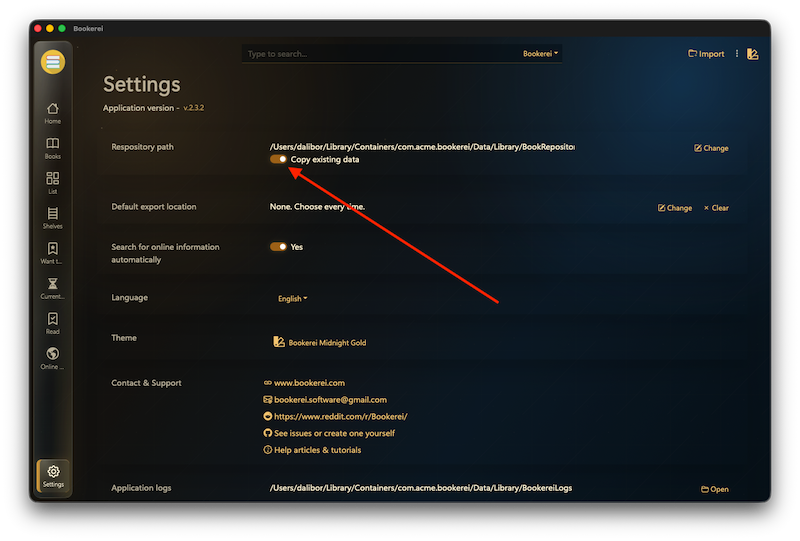
- Open Settings.
- Under Repository path, leave Copy all data enabled.
- Choose Change and select an empty folder inside your cloud/shared storage.
- Let Bookerei finish copying. A large library can take some time.
- Wait for the Syncing... indicator to disappear.
- Wait until your cloud provider reports that the entire folder has finished uploading before setting up another computer.
For a brand-new empty library, select the shared folder on the first computer and then import books normally.
💻 Set Up Each Additional Computer
- Let the cloud provider fully download the shared repository first.
- Open Bookerei Settings.
- Turn Copy all data off. This prevents the new computer's current library from overwriting the shared one.
- Under Repository path, choose Change and select the exact same repository root used by the first computer.
- Keep Bookerei open while the first synchronization finishes.
- Confirm that books, shelves, and reading information appear and that book files open.
Each additional computer builds its own local database from the shared snapshot and later change files. Do not copy Bookerei's private app-data or preferences from one computer to another; each installation needs its own device identity.
Do Not Merge Libraries Automatically
Selecting the shared repository does not merge that computer's previous Bookerei library into it. If both computers already contain different books, back them up and import the extra books into the shared repository from one computer after setup; do not enable Copy all data on both computers.
⚔️ Conflicting Changes
When the same item is changed on two computers, the change with the newer modification time wins.
Because this relies on timestamps:
- keep computer clocks accurate;
- avoid editing the same book, note, shelf, or author on two computers at the same time;
- let one computer and the cloud provider finish before continuing on another.
🎬 Wrapping Up
Bookerei Sync gives you one library across all your machines with almost no setup — just a shared folder and a few clicks. Set up the first computer with Copy all data on, add the rest with Copy all data off, and let your cloud provider do the file moving.
Ready to sync your library?
Get Bookerei and enjoy your books, notes, and reading progress on every computer you use.
Download Bookerei Free