📖 Introduction
A beautiful book cover can make all the difference when browsing your digital library. Whether you've downloaded ebooks from various sources or converted books yourself, you might find that some covers are missing, low quality, or simply not to your liking.
Bookerei makes it incredibly easy to fix and customize your ebook covers. In this guide, we'll show you all the different ways you can replace and update cover images for your books.
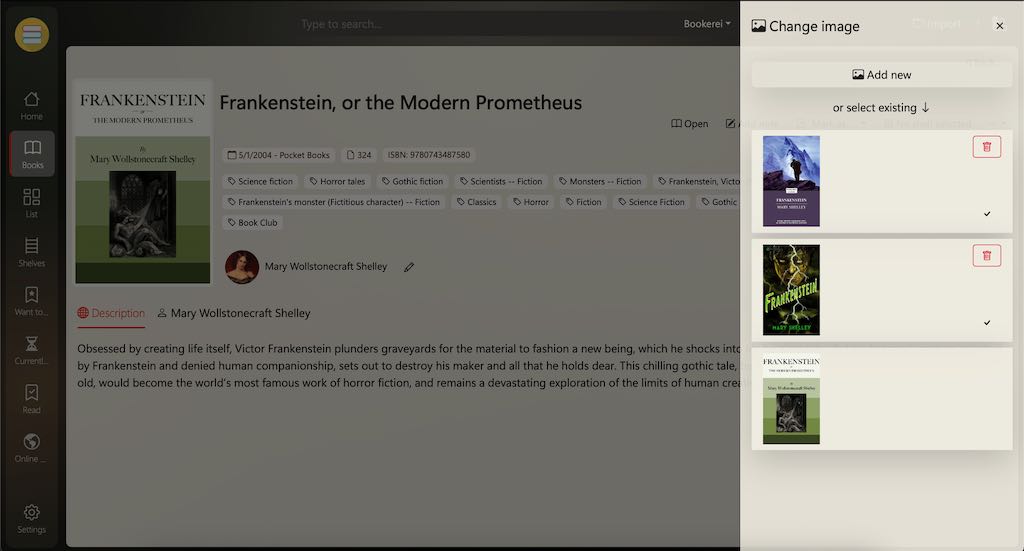
🖼️ Understanding Cover Images in Bookerei
When you work with ebook covers in Bookerei, there are three main sources for cover images:
Original File Cover
The cover embedded in the ebook file when you first import it
Metadata Cover
High-quality cover fetched from online metadata sources
Custom Upload
Your own image uploaded from your computer
📋 Methods to Fix Ebook Covers
Method 1 Default Cover from Book File
When you import a book into Bookerei, the cover image is automatically extracted from the ebook file itself. This is the simplest scenario—if your ebook already has a good quality cover embedded, you don't need to do anything!
Method 2 Fetch Cover from Metadata
One of the most powerful features in Bookerei is the ability to fetch book metadata from the internet, including high-quality cover images.
How it works:
- Open your book's details in Bookerei
- Click the "Fetch info" button
- Bookerei searches online databases for your book
- If a better quality cover is found, it will automatically replace the current one
Method 3 Upload Custom Cover Image
For complete control over your book covers, you can upload your own custom images. This is perfect when you want a specific edition's cover or have created your own design.
Steps to upload a custom cover:
- Open your book's details in Bookerei
- Click on the cover image area or the "Change Cover" option
- Select an image file from your computer
- Bookerei will automatically resize and fit the image
Supported Image Formats
📐 Image Size and Aspect Ratio
When uploading custom cover images, it's helpful to understand how Bookerei handles different image sizes and proportions.
Optimal Aspect Ratio: 8:5
For best results, use images with an 8:5 aspect ratio (width to height). Images with this ratio will fit perfectly without any cropping.
| Recommended Size | Aspect Ratio | Notes |
|---|---|---|
| 1600 × 1000 px | 8:5 | Perfect fit |
| 800 × 500 px | 8:5 | Good quality |
| Other sizes | Various | May be cropped |
💡 Tips for Great Ebook Covers
- Search for high-resolution images: Look for book covers on publisher websites, Goodreads, or book retailer sites for the best quality images.
- Use the largest image available: Bookerei can always scale down, but can't improve a low-resolution image.
- Consider consistency: If you like a uniform look in your library, try to find covers from the same edition or series.
- Don't worry about mistakes: Remember, the original cover is always preserved in the book file. You can always fetch metadata again or upload a different image.
⚠️ Important Note
Original Image Preservation
The original cover image from the book file is always stored and preserved within the ebook file itself. Any cover changes you make in Bookerei are stored separately, meaning your original ebook files remain untouched. This gives you the freedom to experiment with different covers without any risk.
Ready to organize your ebook library?
Start managing your ebooks with beautiful covers and comprehensive metadata using Bookerei.
Try Bookerei Now📚 Related Articles
How to Transfer Books to Kindle
Learn how to send books and documents to your Kindle device via email.
Download Free Ebooks
Discover where to find free, high-quality ebooks from Project Gutenberg and Standard Ebooks.