📱 Introduction
Amazon Kindle devices offer one of the most convenient reading experiences available today, but many users don't realize how easy it is to transfer their own books and documents to their Kindle. Whether you have personal PDFs, EPUB files, or documents you'd like to read on your Kindle, Amazon's "Send to Kindle" email service provides a seamless solution.
In this comprehensive guide, we'll walk you through the entire process of setting up your Kindle to receive documents via email, sending files from your personal email address, and understanding which file formats are supported. By the end of this tutorial, you'll be able to effortlessly transfer any compatible document to your Kindle device.
🔧 Prerequisites
Before you begin, make sure you have:
- A registered Kindle device or Kindle app
- An active Amazon account
- A personal email address
- Access to a web browser for Amazon account settings
- Documents or ebooks in supported formats
📋 Step-by-Step Guide
Step 1 Register Your Kindle Device
First, ensure your Kindle device is properly registered to your Amazon account. If you haven't already done this:
- Turn on your Kindle device
- Connect to Wi-Fi
- Sign in with your Amazon account credentials
For detailed registration instructions, visit Amazon's official help page for your region (e.g., Amazon.com, Amazon.de, or your local Amazon site where you registered your Kindle).
Step 2 Find Your Kindle Email Address
Every Kindle device has a unique email address that you'll use to send documents:
- Go to your Amazon website (e.g., Amazon.com, Amazon.de, or wherever you registered your Kindle) in your web browser
- Sign in to your Amazon account
- Hover over Account & Lists in the top right corner
- Click on Content and Devices
- Navigate to the Devices tab
- Select your Kindle device from the list
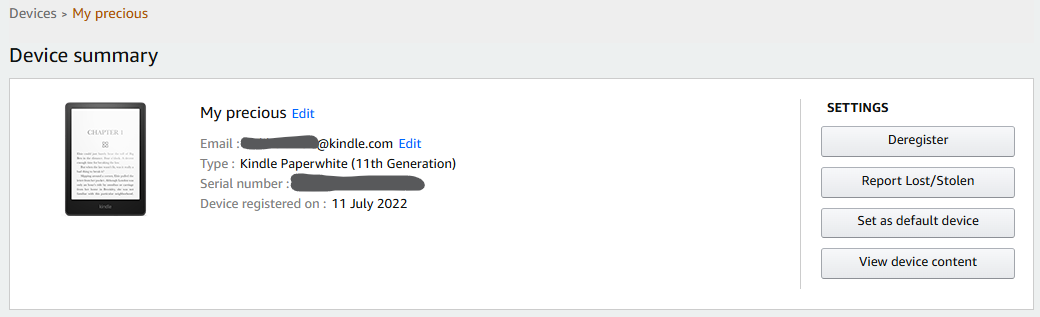
Figure 1: The Devices page showing your Kindle device and its email address
You'll see an email address associated with your Kindle device, typically in the format: yourname@kindle.com or yourname_123@kindle.com. This is your Kindle's personal email address.
Step 3 Add Your Email to Approved Senders List
For security reasons, Amazon only accepts documents from email addresses you've approved. Here's how to add your personal email:
- On the same Content and Devices page, click the Preferences tab
- Scroll down to Personal Document Settings
- Find the section labeled Approved Personal Document E-mail List
- Click Add a new approved e-mail address
- Enter your personal email address (Gmail, Outlook, etc.)
- Click Add Address to confirm
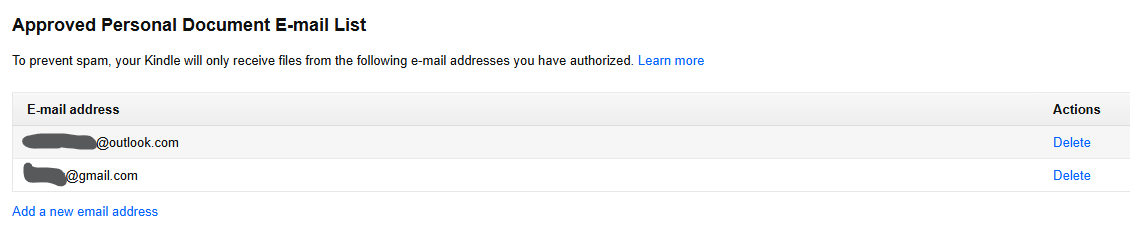
Figure 2: Adding an approved email address to your Personal Document Settings
Step 4 Send Documents to Your Kindle
Now you're ready to send documents! Follow these steps:
- Open your email client (Gmail, Outlook, Apple Mail, etc.)
- Compose a new email
- In the To field, enter your Kindle email address (e.g.,
yourname@kindle.com) - The subject line is optional but can help you identify the document
- Click Attach file and select the document(s) you want to send
- Click Send
📧 Email Tips for Best Results:
- Subject Line: Optional, but use it to add a meaningful title (e.g., "Book Draft" or "Annual Report 2025")
- Body Text: Leave empty or add notes (this won't appear on your Kindle)
- Attachments: You can attach multiple files in one email
- File Size: Maximum attachment size is 50MB per document
- Conversion: Add "Convert" in the subject line to convert certain formats to Kindle format
📄 Supported File Formats
Amazon Kindle supports a wide variety of file formats through the Send to Kindle service. Here's a comprehensive list:
E-book Formats
- EPUB (.epub) - Popular e-book format
Document Formats
- PDF (.pdf) - Portable Document Format
- Microsoft Word (.doc, .docx)
- Rich Text Format (.rtf)
- HTML (.html, .htm)
- Text Files (.txt)
Image Formats
- JPEG (.jpg, .jpeg)
- PNG (.png)
- GIF (.gif)
- BMP (.bmp)
🔍 Where to Find Your Documents on Kindle
Once you've sent a document to your Kindle, here's how to access it:
- Wait for Sync: Make sure your Kindle is connected to Wi-Fi. Documents usually arrive within 1-5 minutes.
- Open Library: On your Kindle home screen, tap on "Library" or "All"
- Filter Options: You can filter by "Downloaded" or "All" to see your documents
- Personal Documents: Look for a "Personal Documents" collection or filter
Accessing Personal Documents on Other Devices:
- Kindle App (iOS/Android): Tap "Library" → "All" → Look for your documents
- Kindle Cloud Reader: Visit read.amazon.com → Sign in → Access your library
- Amazon Website: Go to "Content and Devices" → "Content" tab to manage all documents
⚠️ Troubleshooting Common Issues
- Verify your Kindle is connected to Wi-Fi
- Check that you sent the email from an approved address
- Confirm you used the correct Kindle email address
- Wait a few more minutes (sometimes takes up to 10 minutes)
- Manually sync by going to Settings → Sync My Kindle
- Check your Amazon account's "Content and Devices" to see if the document was received
- Convert the file to a supported format (PDF, EPUB, DOC, or TXT)
- For EPUB files, Amazon now supports them directly (as of 2022)
- Add "Convert" to the email subject line for automatic conversion
- For Word documents, save as PDF first for better formatting retention
- Maximum file size is 50MB per document
- Compress PDF files using online tools like iLovePDF
- Split large documents into smaller sections
- Remove high-resolution images if not essential
- Use USB transfer for very large files instead
- Try sending the original file without "Convert" in the subject
- For PDFs, send without conversion to preserve original layout
- For Word documents, save as PDF first for better formatting retention
- Check the original document formatting before sending
- Double-check your email is on the approved senders list
- Verify the Kindle email address is correct
- Make sure you're sending from the exact approved email address
- Check if your email provider has any restrictions on attachments
- Try sending from a different approved email address
💡 Pro Tips and Best Practices
Organize Your Library
Create collections on your Kindle to organize personal documents separately from purchased books. Long-press on a document, select "Add to Collection," and create a new folder.
Cloud Storage
Documents sent to Kindle are stored in Amazon's cloud. You can download them to any Kindle device or app registered to your account, making your library accessible everywhere.
Manage Storage
Personal documents count toward your device storage. Regularly delete documents you no longer need from your Kindle, but they'll remain in your Amazon cloud library for re-download anytime.
Multiple Devices
If you have multiple Kindle devices or apps, documents sent to your Kindle email will sync across all devices registered to your account (when connected to Wi-Fi).
File Names Matter
Use descriptive file names for your documents before sending them to Kindle. The file name often becomes the book title in your library if no metadata is present.
Quick Access
Save your Kindle email address as a contact in your phone or email client for quick access when you need to send documents on the go.
🆚 Alternative Methods to Transfer Files
While email is the most convenient method, here are other ways to transfer books to your Kindle:
| Method | Pros | Cons |
|---|---|---|
| Send to Kindle Email | Wireless, automatic sync, cloud storage | 50MB file size limit, requires Wi-Fi |
| USB Cable Transfer | No file size limit, works offline | Requires cable, manual transfer, no cloud backup |
| Send to Kindle App | Easy browser extension, one-click sending | Limited to web content and certain formats |
📱 Looking for Better E-book Management?
While Kindle is great for reading, managing a large ebook collection can be challenging. That's where 🚀 Bookerei comes in - a powerful, free ebook reader and library management app that helps you organize, read, and enjoy your entire digital book collection across all your devices.
- Supports EPUB and PDF formats
- Advanced organization with tags and collections
- Beautiful, customizable reading experience
- No file size limitations
❓ Frequently Asked Questions
Can I send EPUB files to Kindle?
Yes! As of 2022, Amazon Kindle supports EPUB files directly. You can send them via email and they will be automatically converted to Kindle format.
Is there a limit to how many documents I can send?
There's no specific limit on the number of documents, but each email can have up to 25 attachments, and each file must be under 50MB. Amazon provides 5GB of free cloud storage for personal documents.
Will documents sent to Kindle sync across all my devices?
Yes! Documents sent to your Kindle email are stored in Amazon's cloud and will sync to all Kindle devices and apps registered to your account.
Can I send documents to someone else's Kindle?
Only if your email address is on their approved senders list. They would need to add your email in their Personal Document Settings for security reasons.
Do sent documents have DRM protection?
No, personal documents sent to Kindle do not have DRM. However, you should only send documents you have the legal right to transfer.
How do I delete a document from my Kindle?
Long-press on the document in your library, then select "Delete" or "Remove from Device." To permanently delete from cloud storage, go to Amazon's "Content and Devices" page and delete it there.
✅ Conclusion
Transferring books and documents to your Kindle via email is one of the most convenient features Amazon offers for Kindle users. With just a few simple setup steps, you can seamlessly send any compatible document from your email to your Kindle device, where it will be available across all your devices through Amazon's cloud sync.
The process is straightforward:
- Register your Kindle device
- Find your unique Kindle email address
- Add your personal email to the approved senders list
- Send documents as email attachments
Whether you're sending personal PDFs, EPUB ebooks, Word documents, or other supported formats, this method provides a wireless, convenient way to build your Kindle library beyond Amazon's store. Remember to keep your Kindle connected to Wi-Fi for automatic sync, and don't hesitate to explore alternative methods like USB transfer or the Send to Kindle app if they better suit your workflow.
Happy reading! 📚
📚 Related Articles
Book Analysis Collection
Explore in-depth analysis of classic and contemporary literature.
More Articles
Browse our collection of literary insights and reading guides.